Chatbox Mobile
Connect Chatbox mobile (iOS / Android) to LMU AI: open Model Provider from ☰ and set the API Host for both protocols — direct overseas connection.
Chatbox mobile (iOS / Android) shares the same configuration logic as the desktop version — only the entry point and field names differ slightly. This guide walks through it screen by screen for mobile; for desktop, see Chatbox — all platforms.
Almost the same as desktop
- Different entry point: on mobile you open Settings from the ☰ menu in the top-left; on desktop it's Settings in the bottom-left.
- Same fields: on mobile they're labeled API Host and API Path, matching the desktop version exactly — just follow the steps below.
Download and install
- Official site: https://chatboxai.app
- Install from the App Store (iOS) or the app store / official APK (Android) — no account needed to use bring-your-own-key (BYOK) mode.
Opening the configuration entry point
Open Chatbox → tap the menu icon ☰ in the top-left to open the sidebar → tap Settings → go to Model Provider → tap Add at the bottom.
Once you're on the configuration screen, fill it in following Method 1 / Method 2 below.
The two protocols
LMU AI supports two connection protocols; choose one based on the model type:
| Protocol | Models | API Host | API Path |
|---|---|---|---|
| Claude API (Anthropic Compatible) | Claude models, Chinese models (DeepSeek, Qwen, GLM, Kimi, etc.) | https://api.lmuai.ai | Default is fine |
| OpenAI Responses API Compatible | OpenAI models (GPT-5.6 / GPT-5.5, etc.) | https://api.lmuai.ai | /responses |
The API Host never includes /v1
Chatbox appends the path automatically, so always enter the API Host up to the domain only — do not include /v1. After you fill it in, the full assembled address is shown live below the fields — for example, the OpenAI Responses protocol becomes https://api.lmuai.ai/v1/responses. If the domain isn't api.lmuai.ai, the API Host is wrong.
Method 1: Anthropic protocol (Claude and Chinese models)
-
API Mode: select
Claude API (Anthropic Compatible) -
Name: anything you like (e.g.
LMU AI) -
API Host: enter
https://api.lmuai.ai(without/v1) -
API Key: enter the
sk-key generated in the console -
Add models: the mobile preset list may not include the latest models, so in the Model section tap New / Add Model and enter the model ID, for example:
claude-opus-5claude-sonnet-5claude-haiku-4-5deepseek-v4-proqwen3.8-max-previewglm-5.2kimi-k3
For the full list of available models, see the Model Gallery.
Method 2: OpenAI protocol (GPT models)
Requirements
You need to meet one of these conditions:
- You have subscribed to a GPT plan
- You use pay-as-you-go billing and have selected the GPT group in the LMU AI console
- API Mode: select
OpenAI Responses API Compatible(notOpenAI API Compatible) - Name: anything you like (e.g.
LMUAI-GPT) - API Host: enter
https://api.lmuai.ai - API Path: enter
/responses - API Key: enter the
sk-key generated in the console - Add models: in the Model section tap New and enter the model ID, e.g.
gpt-5.6-sol,gpt-5.6-terra,gpt-5.5,gpt-5.4.
Chatbox joins the API Host, /v1, and API Path into the full address https://api.lmuai.ai/v1/responses, shown live below the fields.
A worked example and mobile-specific details
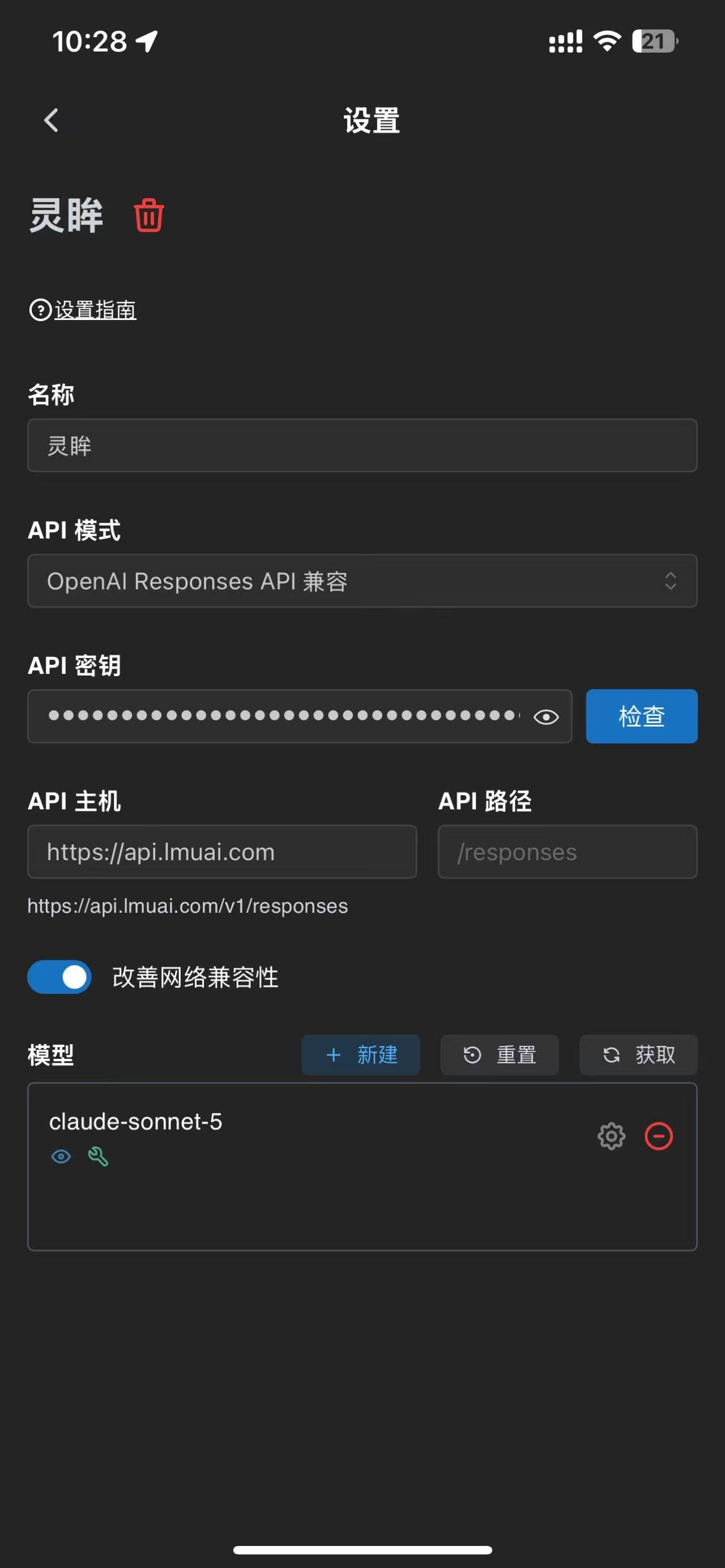
Below is a completed mobile configuration screen (OpenAI Responses protocol; the full address https://api.lmuai.ai/v1/responses is already assembled below the fields):
Two details for mobile
- "Improve Network Compatibility": turn on this switch near the bottom of the screen; it reduces connection problems on mobile networks.
- Check the full address assembled below the fields: once filled in, Chatbox shows the final request URL live (in the screenshot above it yields
https://api.lmuai.ai/v1/responses). If the domain isn'tapi.lmuai.ai, the API Host is wrong.
Troubleshooting
- Changes don't take effect: after saving, restart Chatbox once or reselect the model in the chat screen; on mobile you sometimes also need to restart after switching between Wi-Fi and cellular.
- 401 / 403 errors: check in order whether the API Key is the
sk-key from the LMU AI console, whether the API Host is correct (without/v1), whether the OpenAI protocol's API Mode and API Path are right, and whether your current plan / billing group includes the model you're calling. - For more on the protocols, model IDs, and common issues, see the shared desktop-and-mobile Chatbox — all platforms page.
Last updated:
Still have questions? Ask in the LMU AI Community (in Chinese) and sign in with your console account.
Get an LMU AI key and start using Claude, Codex and more
Free sign-up, flexible plans, one key across Claude Code, Codex CLI, Cursor, VS Code, OpenCode, Cherry Studio and other AI tools.
Sign up